Showing posts with label Formatting Tips. Show all posts

how to insert formula in blank rows/column in excel 2007,2010

Hi Friends, after a little break of heavy work i come back to update my blog again. today will check how to insert formula's in blank rows & columns in between of large data.

This will help to complete your task quickly with single minute. lets go inside the How to's.

These are the simple steps to insert formulas in blank columns/rows. you can check the image for
explained view.

How to use Superscript and Subscript text or numbers in Excel spreadsheet.


What is Superscript ? 

A distinguishing symbol (as a numeral or letter ) written immediately above or above and to the right or left of another character.

For Example : 1St, 2ed,3rd.....

Shortcut Keys for superscript : Ctrl+Shift+f  => Alt +E 
By mouse click Goto Home Tab => =>Click superscript.


What is Subscript ? 

A distinguishing symbol (as a numeral or letter ) written immediately below or below and to the right or left of another character.

For Example : 1St, 2ed,3rd.....

Shortcut Keys for superscript : Ctrl+Shift+f  => Alt +B
By mouse click Goto Home Tab => =>Click subscript.


How to set print areas and print titles on a excel worksheet


Excel 2007's Print Titles Feature enables you to print particular row and column headings on each page of the report.Print Titles are important in multipage reports where the columns and rows of related data spill over other pages that no longer show the row and column headings on the first page.


  1. Click the Print Titles button on the Page Layout Tab on the ribbon or press ( Alt+PI)
  2. Click on the Rows to repeat at top
  3. Click in the rows to repeat at the top
  4. Select your print area ( in your sheet)
  5. Go to Print Preview (Ctrl + F2)
  6. After update Print Titles my two pages shows with headline.

Remember Tip : To Clear Print Titles Follow first 2 steps and Remove Values in Rows to repeat at top.

How To Turn off Group Mode in excel/How to make un group your excel


Hello Geeks,let me give a example how i create this post.Yesterday  i used multiple excel at once,suddenly my data tab (filter) gone inactive. it was Oops moment for me to get rid immediately.than i saw its was in group mode which i selected multiple sheet !!!!. I thought this will happen to many who works in multiple sheets.so here are the solution.please check the step by step pictures to learn.

When my Excel Ungroup Data Tab is active ( Filter options works fine)

By mistake you would have select all sheets using shortcut keys(Ctrl+Shift+Click)

This is how your excel mode will be shown at top if you select all sheets (or) multiple sheets. 

 Your Data Tab(Filter) will be inactive mode

The very simple step just right click on one of the sheet uncheck (ungroup sheets)

Thats it,your excel will be normal mode as like before.just put a comment if this post helped you.


How to Change your Excel spreadsheet background by using your own image /How to add a custom Background Image in Excel


Hello Everyone,Today i am going to explain how to change your spreadsheet background with your own image.follow the steps in picture below & mainly it is useful for professional guy who's submitting the spreadsheet to their boss.here i have just shown example with this month calender,you can follow the same steps for your excel sheet.

Now lets start the steps (Follow flower for step by step) :

Fix  your data to change background

Select your shape

Change shape colour with shape fill and right click select format shape.

Go to fill select file to insert picture.

Right click with your mouse again go to size and properties

Select the options given below (print object) is must

Again go to format shape => fill Change the transparency

Finally Check with print preview view

Hope you guys understood also check my video here

How To Insert Clip Art (or) Upload images into Shapes in micro soft excel


.


how to use / change currency format in excel 2007


As  all we know now daily we use to check currency rate changes in television, paper & internet. i use to check in http://www.xe.com/ . The main reason to know currency changes to calculate our budget in house hold items purchasing, price comparison in purchasing,share marketing,etc....

When we prepare a report like monthly stock statement (warehouse),price comparison (purchase dept), purchase order(purchase dept),financial report (finance) & accounts related reports etc...

working currency related reports in excel is simply easy & good to show to your boss. now let us see how to use / change currency format in excel.

Related Articles : To know more about Excel Home tab check here

  • Select your data that you want to change / put currency symbol,go to home tab & select number group.


  • Go to format cells & change currency symbol as you required. i select indian rupee and save it.


  • The other method just select your data like shown in my below pic go to Accounting number format & select.


  • Here u can see in the picture the values changed with symbol.


I hope you understand my steps which i mentioned above,if not please put a comment below it will useful for me & other readers too.


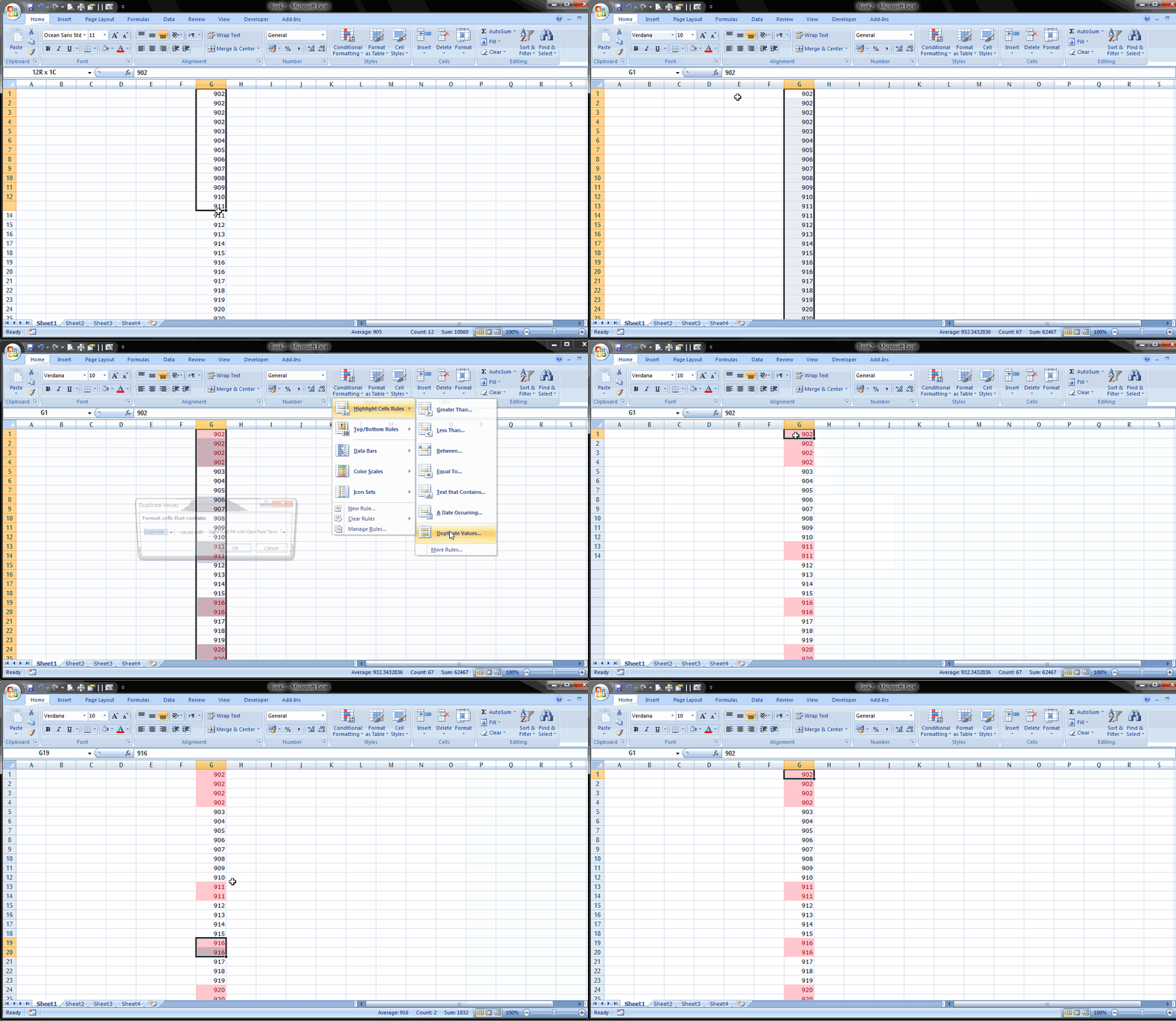
How to check duplicate values with conditional formatting in excel 2007


Check out the Gif image given below to learn (how to check duplicate values with conditional formatting
in excel 2007.


How to Protect your excel 2007 File by changing your FONT & Protect sheet in excel???


Learn How to protect your excel file with font & protect sheet:

  1. Open your excel sheet & give (Select + A).
  2. Go to font & change your font as Wingdings 2.
  3.  Go to review Tab click protect sheet select all content & give password.
  4. save it .


How To change your default font in your Excel 2007 ?


Learn how to change your default font in Excel 2007 :-


  1. Go to Office Button.
  2. Select Excel Options.
  3. Check in Popular When Creating new workbooks.
  4. Change the font that you need in Use this font.
  5. Click Ok & save it.
  6. Open A new workbook you will see the changed font.
Explained Image : 


Shortcut Keys to Use:-

  • Open your Excel work book.
  • Press Alt + F.
  • Press I then N.
  • Save it.


E-mail Newsletter

Sign up now to receive breaking news and to hear what's new with us.

Recent Articles

© 2014 Howto- Excel | Distributed By My Blogger Themes | Created By BloggerTheme9
TOP